How it works

Six steps, from the first photo to the handover PDF. The clips are from a demo estate, so the names and photos are examples.

Step 1 · You

Photo the snag

Tap New. Take the photo, then pick the house and the trade, one tap each. Add a short note if the photo doesn’t say it all.

Need more than one photo? Add up to 3, for example a wide shot and a close-up.

Tip: “Save & next” keeps the house and the trade, so the next one is two taps. Plain “Save” keeps it without sending, so you can send each trade one list at the end.
Step 2 · You

Send it to the trade

Tap Save & send. WhatsApp opens with the message ready: their jobs, one link and a PIN. Press send.

Need to remind them? Send the same link again. It never changes, and it always shows their current jobs.

Step 3 · Trade

The trade takes the after photo

They open the link in their phone’s browser, type the PIN and take the after photo once it’s fixed. No app, no account.

They only see their own jobs. Questions stay on WhatsApp, where they already talk to you.

Step 4 · You

Check it and close it

The job moves to To review. You see the before and after side by side. If it’s right, tap Accept & close.

Only you can close a job. The trade can’t tick their own work done.

Step 5 · You

Not right? Send it back

Pick a reason, like “Not finished”, and send it back. The trade opens the same link and sees your reason on top.

It comes back to you with a new after photo.

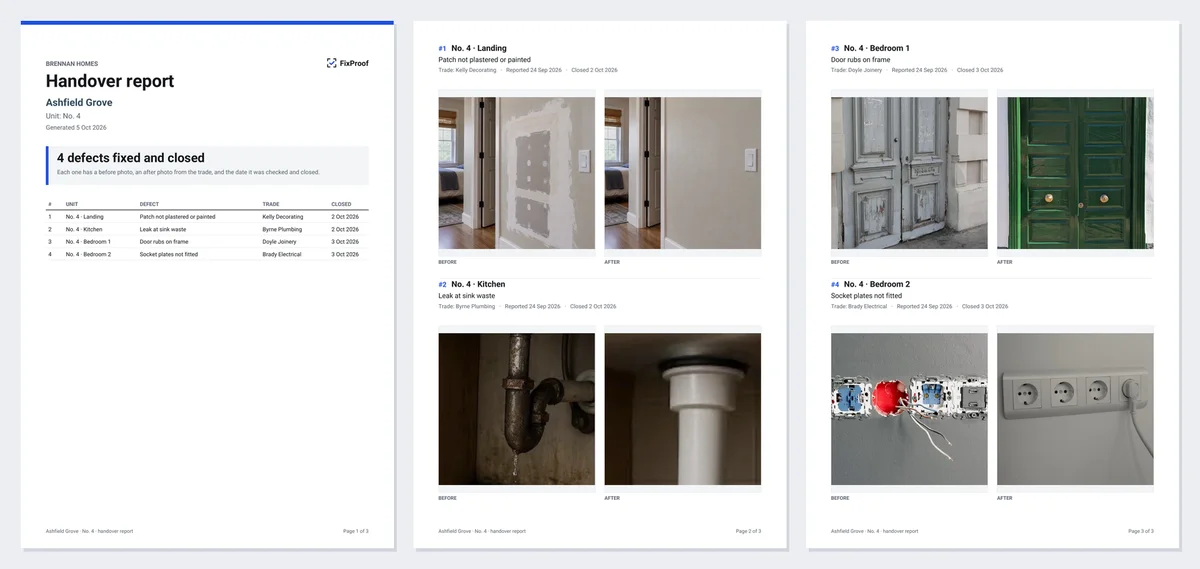
The handover PDF: a cover page with a summary table, then before and after photos for each job
Step 6 · You

Hand over the PDF

Pick the project, or one house, and tap Download. Every closed job is in it, with the before and after photos, the trade and the dates.

Send it to the buyer, their engineer or the developer.

Try it on your next handover

14 days free, no card needed. Sign up in a minute and send your first job from the first house.